
Free Poker Session Tracker | Bankroll & Win/Loss Tracker

By Don • Last updated January 20, 2026
Track every poker session with precision using our free bankroll and win/loss tracker. Log live or online play, view profit/loss charts, convert currencies, and export to CSV. Built for serious poker players.
Zero Tilt Poker Session Tracker (Free)
The Zero Tilt Poker Session Tracker makes it easy to log every poker session, track your bankroll, and analyze your results over time. Whether you play live cash games or online tournaments, this free poker bankroll tracker helps you understand your win rate, variance, and total profit or loss. Try the tool below and make an account (optional) to save your results across devices!
Current Session
| Date & Time | Location | Game Type | Buy-in | Profit/Loss | Notes |
|---|---|---|---|---|---|
|
~
|
| ||||
No saved sessions yet. Fill out the form above and click "Save Session" to get started!
How to Use the Zero Tilt Poker Session Tracker
1. Open the Tracker
Scroll to the embedded tracker above or click the Start Tracking button. The tool runs directly in your browser, so there’s no need to download anything. You can log sessions immediately without creating an account, or sign up to save your data and sync across devices.
2. Log Each Poker Session
Enter key details like location, game type, stakes, start and end time, and results. You can tag each entry as Live or Online to separate results later. The tracker automatically updates your bankroll and displays a running profit/loss (P/L) graph after every session.
3. Review Your Win/Loss Graph
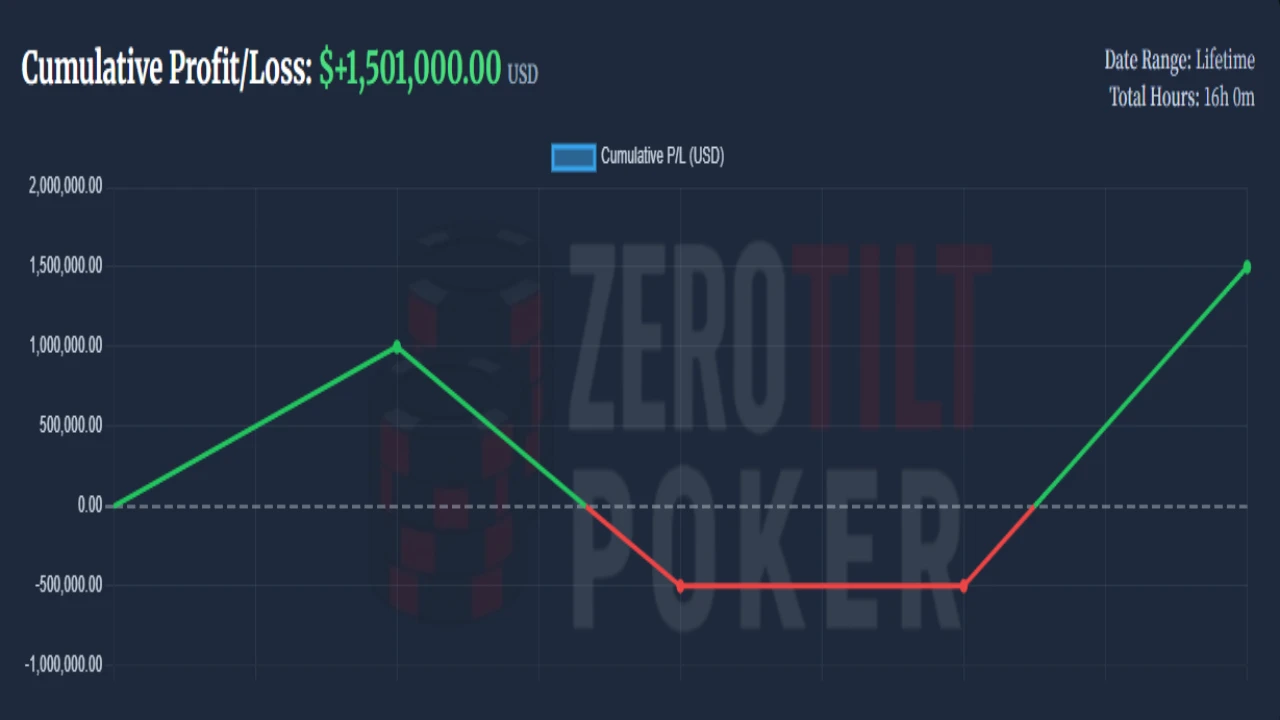
The built-in chart visualizes your progress over time. Each green line shows a winning streak, while red segments mark losses. Hover over any data point to see the date, game, and exact P/L amount for that session. You can toggle between fiat and crypto currencies or select a different output currency for instant conversion.
4. Filter and Analyze Sessions
Use the Filters panel to view results by game type, location, or time frame. This helps you find your most profitable formats and identify leaks in your bankroll. The currency rates automatically update daily, ensuring accurate conversions for international players.
5. Export or Backup Your Data
Click Export to CSV to download your full session history. CSV files can be opened in Excel, Google Sheets, or other poker analysis tools. Creating a Zero Tilt Poker account also enables secure cloud sync, so you’ll never lose your results even if you clear your browser data.
6. Use It on Mobile or Desktop
The tracker works on all devices including phones, tablets, and desktops. The interface is fully responsive, with simplified input fields and touch-friendly controls for mobile poker players who log sessions on the go.
7. Stay Consistent
For best results, log your sessions right after finishing each game. Over time, your bankroll tracker becomes a powerful tool for understanding patterns, tilt triggers, and long-term win rate trends, helping you make smarter bankroll decisions and play with confidence.
Zero Tilt Poker Session Tracker FAQ’s
Which currencies does the Zero Tilt Poker Session Tracker support?
The tracker supports both fiat and crypto currencies, including USD, EUR, GBP, JPY, and digital assets like BTC, ETH, and DOGE. You can log any session in your preferred currency and convert it for unified bankroll tracking.
How often are exchange rates updated?
Fiat exchange rates update daily via exchangerate.host, while crypto rates pull in live from CoinGecko. Admins can force a refresh anytime from the WordPress admin bar.
Do I need to create an account to use the tracker?
No. You can use all core features locally without logging in. But creating a free account lets you sync sessions across devices and securely back up your data to the cloud.
Who is this tool built for?
The tracker is made for serious poker players—whether you’re grinding 1/2 live cash, playing Sunday online MTTs, or analyzing mixed game swings. It’s lightweight enough for casuals and powerful enough for pros.
How do I use the session tracker?
Just fill in the session form with details like location, game type, stake, and results. Then click “Save Session”. You can view historical stats, filter your graph, and export everything to CSV for deep analysis.




Leave a Reply